
Free · runs in your browser

Video too dark? Fix it here

Open the clip, press Auto brighten and compare it with the original side by side. Everything happens in your browser, and the file never leaves your device.

Drop a dark video to brightenChoose a dark video

Or pick one from your computer. You’ll see it brightened before you save anything.Pick the clip that came out too dark from your photos or files.

Works with MP4MOVWebMMKVand more

Brightened on your device. The file is never uploaded.

If your video is too dark, open it in the tool above and press Auto brighten. It reads a few frames, works out how dark the clip really is and lifts it by the right amount, so a candlelit dinner still looks candlelit rather than floodlit. Turn on Before and after to see the difference, then select Export video.

Before you change the file, it’s worth a ten-second check that the video is actually dark and not just your screen or player. Play it on a second device, or look at it with your display at normal brightness. If it only looks dark in one app, the cause may be an HDR clip shown on a non-HDR screen, covered below, and brightening the file is still the most reliable fix for sharing it.
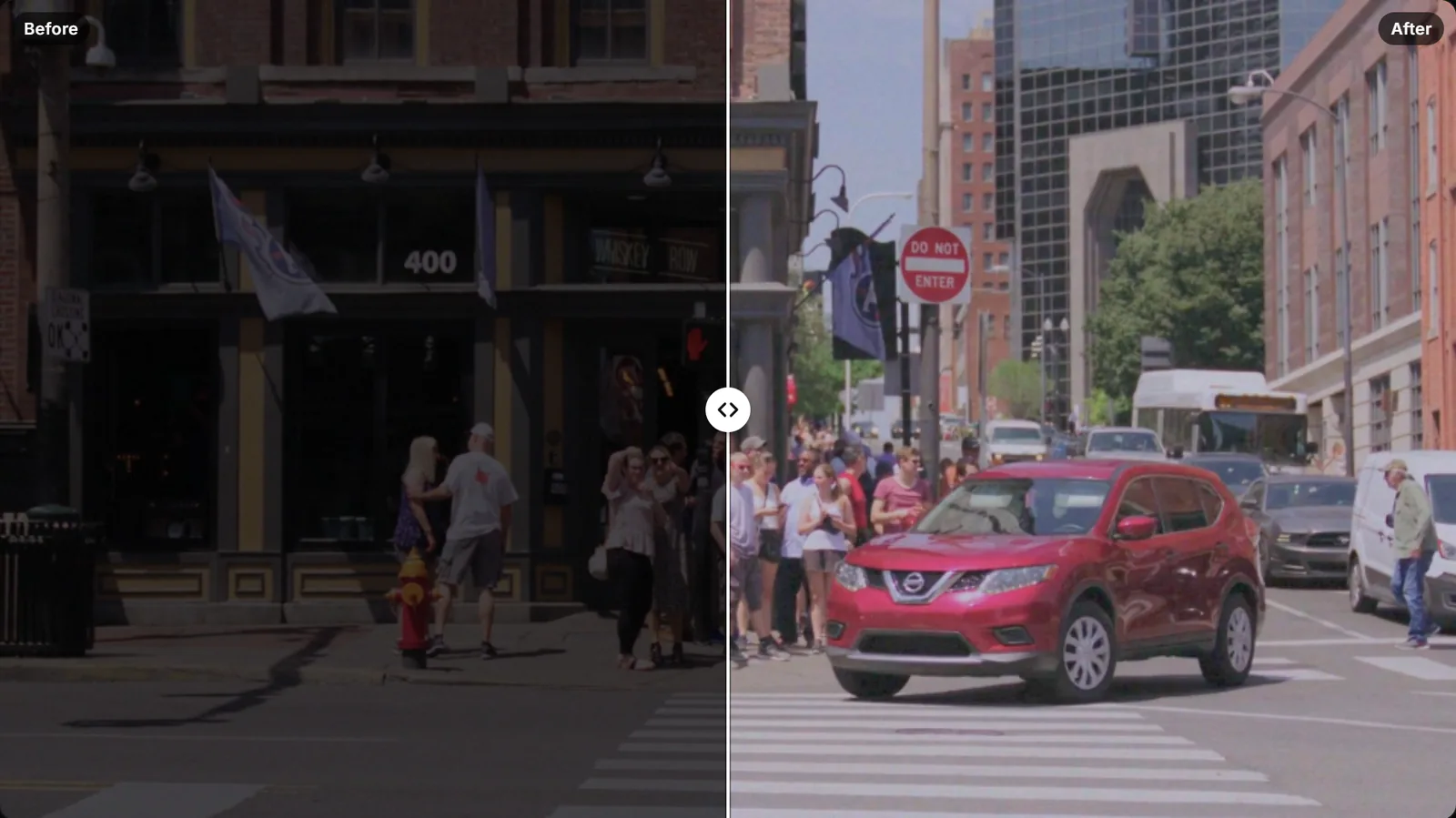
The preview split down the middle: on the left, labelled Before, a street corner so dark the shop front and people are hard to make out; on the right, labelled After, the same frame after Auto brighten, with the red car, the crowd and the signs clearly visible (enlarge image)

The same frame before and after Auto brighten, compared with the Before and after divider.

How to brighten a video that is too dark

  1. Open the dark clip

    Drop the file onto the tool or choose Select video. Phone videos, screen recordings and camera files in MP4, MOV, WebM or MKV all open.

  2. Press Auto brighten

    Press Auto brighten (or A). The middle tones move to a natural level, bright lights are held back and the shadows are lifted.

  3. Compare and adjust

    Switch on Before and after (B) and drag the divider. If it’s too strong or too gentle, move Strength. For a specific situation, try Night video, Dim room, Backlit or Slightly dark instead.

  4. Export and save it

    Select Export video. When Your video is ready appears, choose Download video, or Share on a phone to save it to your photos.

Why videos come out too dark

A phone or camera decides exposure many times a second, and in video it has far less freedom than when taking a photo. Each frame must be captured in a fraction of the frame interval (at 30 frames per second, no single exposure can be longer than a thirtieth of a second), so in low light the camera raises its gain instead. Gain has a ceiling before the picture turns to noise, and once the camera hits it, the image just gets darker. That is why a night photo from the same phone can look bright while the video next to it looks murky: photo night modes merge several long exposures, which a moving video cannot do.

The usual culprits

  • Low light. Restaurants, living rooms in the evening, concerts and streets at night are far dimmer than they look to your eyes.
  • A bright background. When a window, the sky or a stage light fills part of the frame, auto exposure protects that and lets the people in front fall into shadow. The backlit video guide covers this case.
  • Exposure locked or turned down. Tapping and holding on a phone screen locks exposure; dragging the sun icon down afterwards darkens everything that follows.
  • Dark subjects. A black dog or a dark stage fools the meter into brightening, while a bright snowy scene makes it darken. The camera always aims for an average grey.

When the file isn’t the problem

Some clips look dark in one place and fine in another. Recent iPhones and many Android phones record HDR video (Dolby Vision or HLG). On an HDR screen that is bright and punchy; on an older monitor, in some players or after some uploads it can look dim or flat because the HDR information isn’t mapped to a normal display properly. A video that looks crushed and too contrasty in one player but fine elsewhere can also be a video-range mismatch, where the player reads 16-235 “limited range” levels as full range or the other way round.

If your clip looks right on the phone that filmed it but dark everywhere else, opening it here and exporting it gives you a standard (SDR) MP4 that every player shows the same way, and you can brighten it at the same time.

What brightening can and can’t do

Brightening redistributes the tones that the camera recorded. It can make a face that sits in the bottom quarter of the range clearly visible, and because exposure here is applied in linear light, the result keeps natural contrast between light and shade instead of turning grey. What it cannot do is invent detail in areas that were recorded as pure black, or bring back a sky that was already pure white.

Expect some grain. Dark footage always contains noise; you just couldn’t see it before. Each quick fix adds a matching amount of Noise reduction, and you can raise it under More options. The underexposed footage page explains how far a clip can be pushed, and brightening without losing quality covers the export side.

Getting brighter video next time

  • Add light rather than relying on the camera: turn on the room lights, face people towards a window, or use a small LED panel.
  • Put the main light behind the camera, not behind the subject.
  • On a phone, tap the subject to set focus and exposure on it, then nudge the brightness slider up slightly if the face still looks dark.
  • Shoot at 24 or 30 frames per second rather than 60 in dim places: the camera can use a longer exposure for each frame.
  • Keep the lens clean. A smudged lens adds haze that makes dark scenes look even flatter.

Dark video questions

Why is my video so dark when the photo I took looked fine?

Photo night modes combine several long exposures into one picture. Video has to capture a new frame every 1/30 s or so, so each frame gets much less light, and the camera can only raise its gain so far before the noise takes over.

How do I make a dark video brighter without an app?

Open it in the tool on this page, press Auto brighten, check it with Before and after, then select Export video. It runs in your browser on a computer or a phone, with nothing to install and no upload.

Why does my video look darker after I upload or send it?

Usually because it is an HDR recording that the other app or screen can’t display properly, so it is squeezed into a dim, flat picture. Exporting it here produces a standard SDR file that looks the same everywhere.

Will brightening make my video grainy?

It shows the grain that was already hidden in the shadows. Noise reduction smooths it, and lowering Strength or moving Blacks a little to the left keeps the darkest areas clean.

Is it better to use Exposure or Brightness?

For a clip that is just too dark, Exposure usually looks more natural because it multiplies the light rather than adding a flat amount, so contrast and colour hold up. Brightness is handy for small, even corrections.

Can I brighten just the beginning of the clip?

The settings apply to the whole part you export. Trim the clip to the dark section with the scissors button or I and O, export it, and join it back in your editor if needed.

Does it keep the sound and the original resolution?

Yes. The audio track is kept unless you turn off Keep sound, and the export uses the original size unless you pick a smaller one under Export settings.